©
©
|
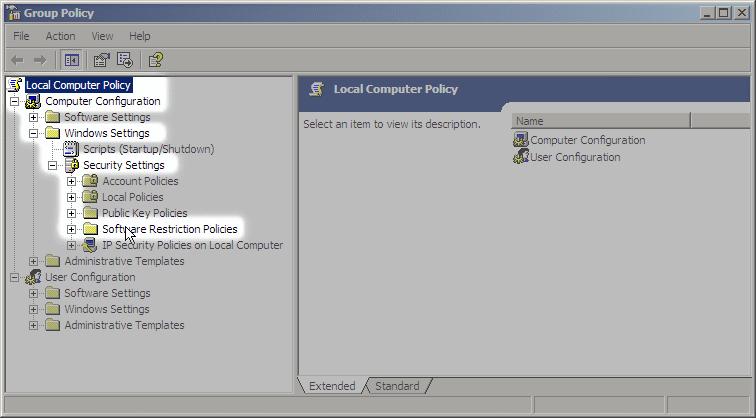
Use a Software Restriction Policy (or Parental Controls) to stop exploit payloads and Trojan Horse programs from running When you use a Standard User account on Windows Vista, Windows 7 or Windows 8, you can enhance security by adding a Software Restriction Policy or using Parental Controls. These arbitrarily prevent a broad spectrum of attacks on your system. They don't need updates, they don't slow down your computer significntly, they don't cost anything, and they protect your other layers of defense from sabotage. Show me how this works Software Restriction Policy (as shown here) works on a simple principle: it has a list of filetypes that might be harmful, like .EXE files, and it'll only let them be run if they're in an approved location, such as the C:\Program Files and C:\Windows directories. And your non-Administrator user accounts (or something exploiting them) cannot put new files into those locations, with a few exceptions discussed later. So it creates a Catch-22 impasse. You can override it when you need to. 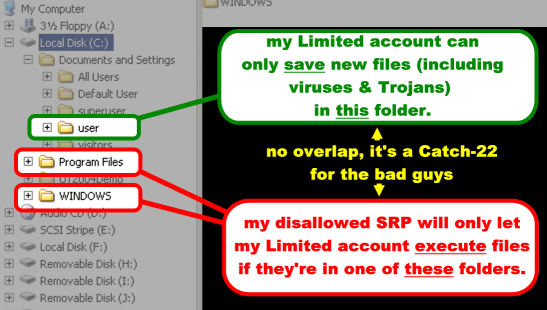 This is from a WinXP system, but you see the idea
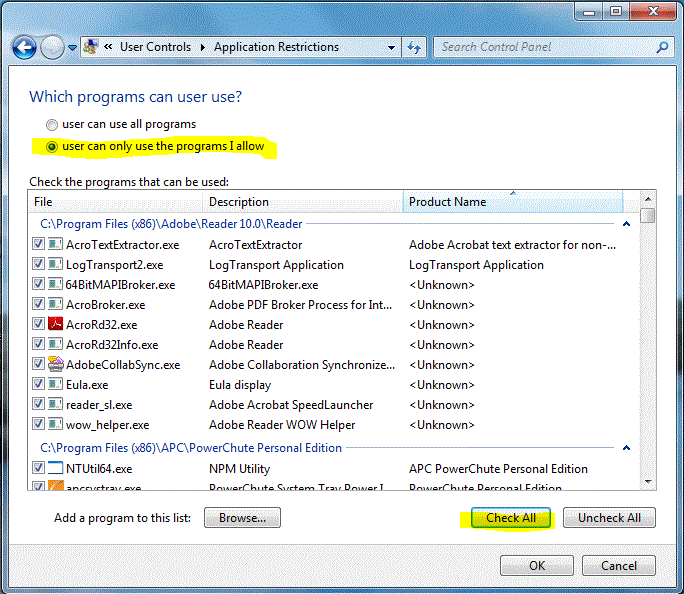
Parental Controls is simpler. Set up as shown here, it simply creates a "whitelist" of the .EXE files already installed on the system in the normal locations. You can add more programs to the whitelist as the need arises. You can also choose which software can be run on a per-user basis. Which one's stronger protection? Software Restriction Policy is stronger if it's set up correctly, because it can be applied to more than just .EXE files. Are there some loopholes? If an attack doesn't try to write files to the disk in the first place, it might bypass these protections. It could also attempt to use a legitimate program or feature to do something malicious. For additional protection against those dangers, install and configure Microsoft's free EMET utility, uninstall software you don't actually need, give your system a checkup with Secunia's free Personal Software Inspector utility, and don't take risks with warez or software cracks. What types of attacks do these techniques prevent? It will stop AutoRun worms that spread on removable storage (USB, CD and DVD, cameras, phones). It will stop untrustworthy users from installing unwanted software or running portable apps, unless they have an Administrator password. And as mentioned above, it will stop a broad range of exploits that borrow your own powers to execute a file and take malicious actions, such as:
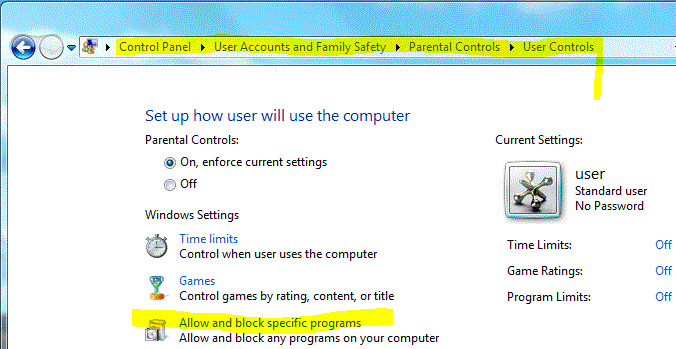
Do these techniques require some ongoing maintenance? Yes. If you install new printers or software, you'll want to audit your Software Restriction Policy rules to make sure there aren't any new loopholes (covered in Step 6 below). Parental Controls will prompt you as needed if there's a new .EXE file to permit or deny, including software update files. I have a home version of Windows, such as Windows 7 Home Premium, Windows Vista Home Premium, or Windows 8, or I want to go with a relatively easy approach Use the Parental Controls feature. Go to Start > Control Panel > User Accounts And Family Safety and do these steps:
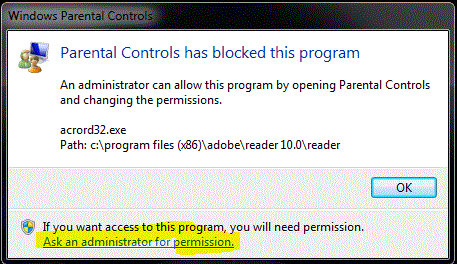
That's it! Anything that's not on the list will not be allowed to run unless you approve it, including payloads from exploit attacks under the surface. So what happens when Parental Controls blocks an unknown file? If a file tries to run and it hasn't been approved, the user sees a prompt like this:
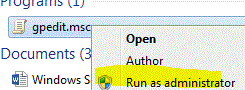
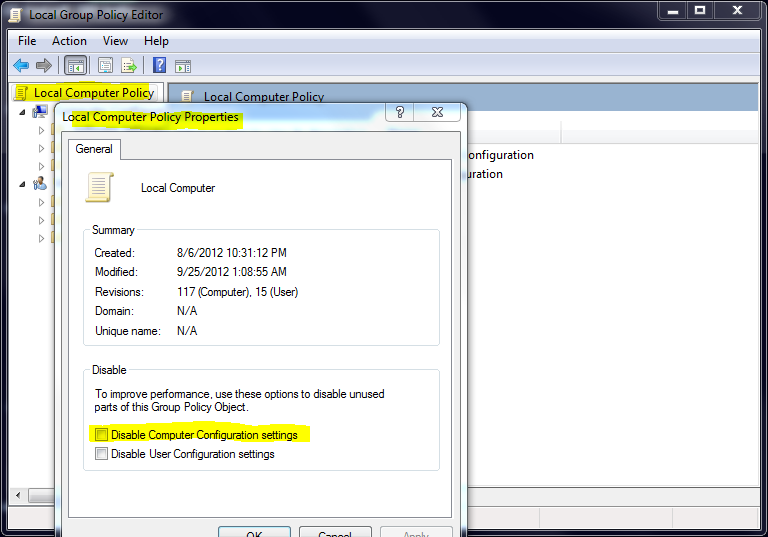
Clicking "Ask an administrator for permission" brings up another prompt where the Administrator credentials can be used to approve this file. An example of when you might see this type of prompt: Adobe Reader downloads an update and tries to run it. I have a business version of Windows (Pro, Business, Ultimate or Enterprise editions) and I'm not afraid to spend some time on this Use Software Restriction Policy in disallowed-by-default mode. more info for Information Technology professionals: Microsoft's information on Software Restriction Policy and the National Security Agency's guide to SRP (PDF format) Step 1: Create a Software Restriction Policy
Step 2: Apply the Software Restriction Policy to all software*, and to all users except Administrators Double-click Enforcement and set the Enforcement as shown below. You could apply the Software Restriction Policy to all users including Administrators, but then you'd run into occasional hangups when installing/removing software. * NOTE: historically, several versions of Adobe Flash Player have caused Web browsers to stop responding if you enforce SRP on all files. As a workaround, you can enforce SRP on all files except .DLLs until Flash Player is obsolete, or Adobe deigns to fix it. 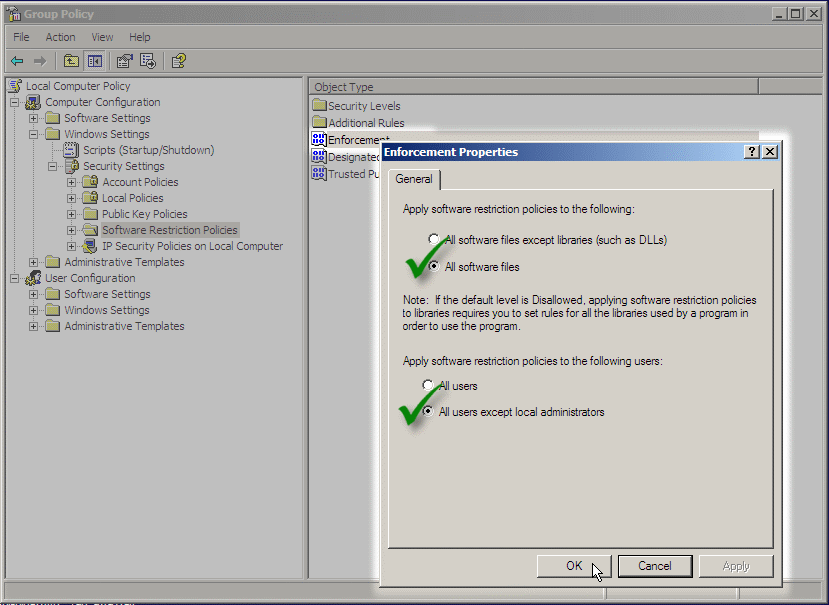
Step 3: Remove the LNK filetype In the right panel, double-click Designated File Types. A panel opens. Go down the list to LNK and click it, then click the Delete button. This adjustment allows you to use your desktop shortcuts and Quick Launch icons, which are mostly the LNK filetype. 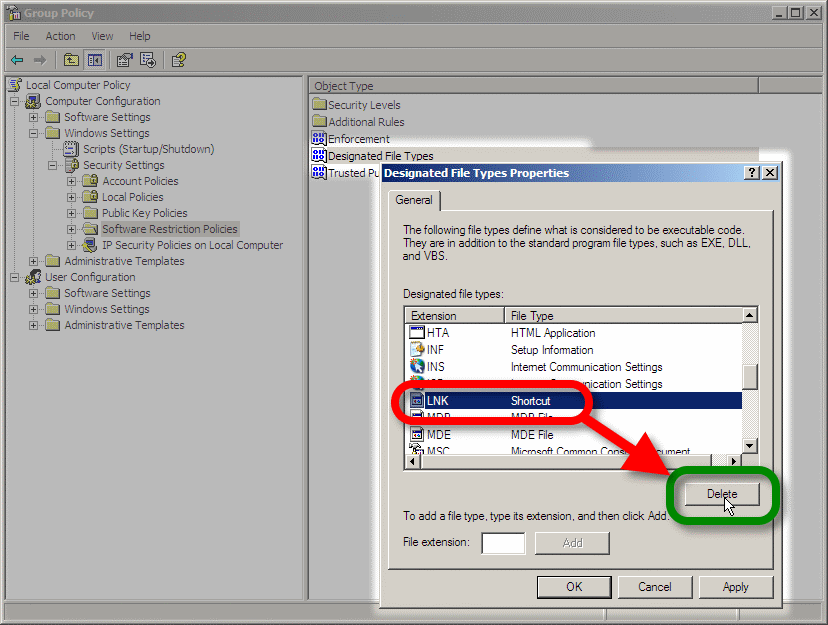
Step 4: Switch on the protection! Right-click on Disallowed in the Security Levels folder, and set it as the default security level. You may be wondering what the Basic User level does; on Windows 7, it's exactly the same as Unrestricted, so don't use it if you want SRP to work. 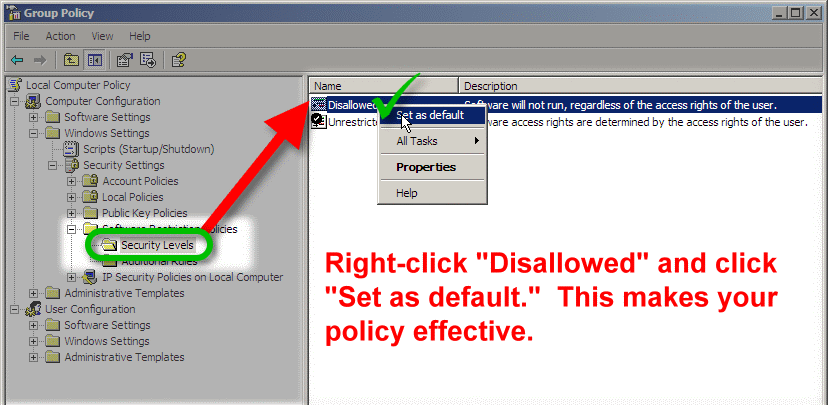
You'll see a prompt like this. Choose "Yes." 
If you want to turn the Software Restriction Policy off again, just set Unrestricted as the default. Step 5: add a rule for 64-bit versions of Windows 64-bit versions of Windows have an extra Program Files directory named C:\Program Files (x86). Click on Additional Rules and make a new Path Rule that makes that directory Unrestricted, so software that's installed there is allowed to run. 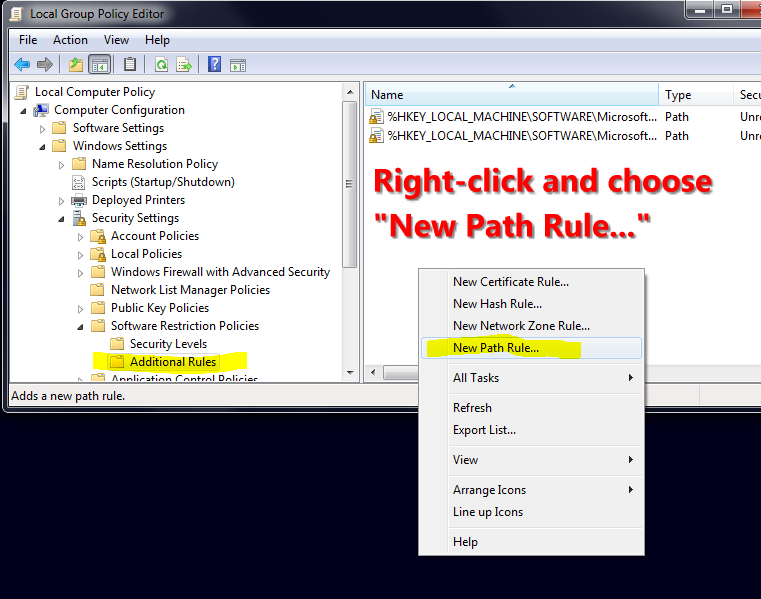
Go to the Additional Rules folder and right-click in the right-hand pane, and choose New Path Rule 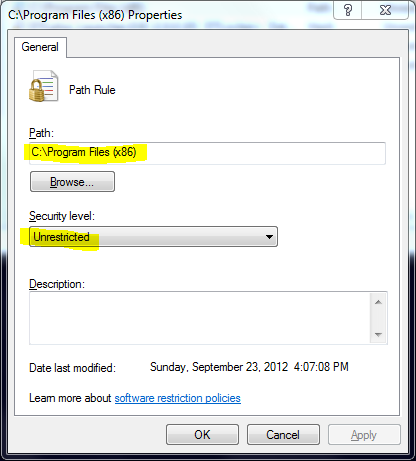
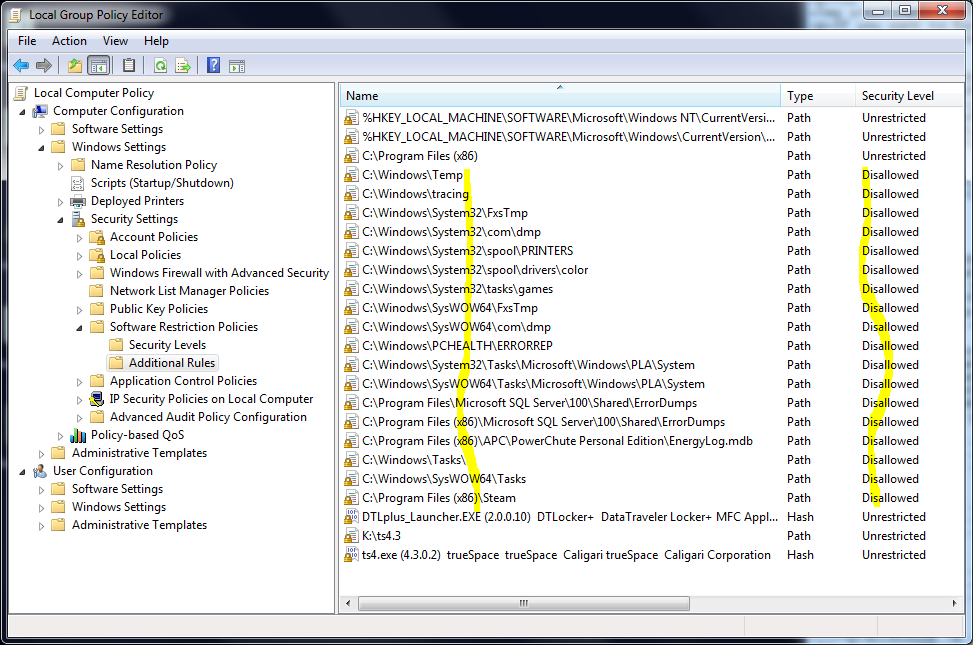
Browse to the C:\Program Files (x86) directory, and set it to Unrestricted Special rule for Windows 8 On Windows 8, add a Path Rule that makes C:\Program Files\WindowsApps an Unrestricted path. This will overcome issues where some Windows Apps from the Windows Store cannot launch. Step 6: find and close loopholes If you're using Windows 7, begin by obtaining and installing a Hotfix from Microsoft here: Microsoft Article ID: 2532445 Credit to security researcher Didier Stevens for his blogs on this subject. Remember the key idea behind Software Restriction Policy: your non-Administrator accounts (or something exploiting them) should not have Write permissions to anywhere that they can run a dangerous file from. A stock Windows installation does have some loopholes. You fix them by creating Disallowed path rules for those folders. What if I don't close the loopholes? Without closing these loopholes, SRP is still a potent boost in security. For example, garden-variety malware isn't expecting to get blocked when trying to run from your user profile in C:\Users, or an AutoRun attack on an infected USB device (both popular tactics), and SRP will block those attacks even if you don't close all possible loopholes. But you can spend another 15 minutes on this and really do the job right, so here's the plan:
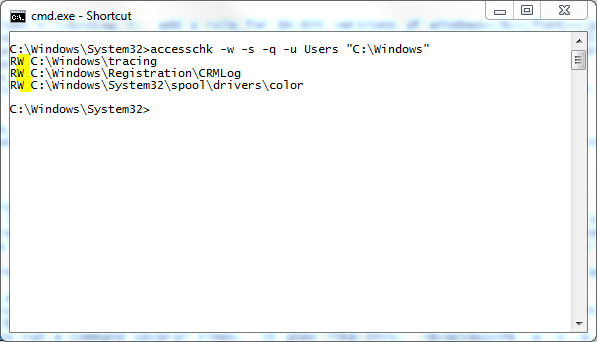
If you prefer to run the commands manually, here they are. They check the three Unrestricted paths on a typical 64-bit Windows installation, for each of the groups (Users, Everyone, Authenticated Users, Interactive). If you have additional Unrestricted paths, check them too. accesschk -w -s -q -u Users "C:\Program Files" accesschk -w -s -q -u Users "C:\Program Files (x86)" accesschk -w -s -q -u Users "C:\Windows" accesschk -w -s -q -u Everyone "C:\Program Files" accesschk -w -s -q -u Everyone "C:\Program Files (x86)" accesschk -w -s -q -u Everyone "C:\Windows" accesschk -w -s -q -u "Authenticated Users" "C:\Program Files" accesschk -w -s -q -u "Authenticated Users" "C:\Program Files (x86)" accesschk -w -s -q -u "Authenticated Users" "C:\Windows" accesschk -w -s -q -u Interactive "C:\Program Files" accesschk -w -s -q -u Interactive "C:\Program Files (x86)" accesschk -w -s -q -u Interactive "C:\Windows" After each command runs, note the folders where that group has Write access, and create a Path Rule that makes that folder Disallowed, if you haven't already created one. You'll be doing quite a few of these Disallowed rules, maybe 15 to 20, so when you're finished, glance down the list for any that you accidentally set to Unrestricted when you meant to use Disallowed. Tip: a Disallowed rule for a specific folder will cover its subfolders as well, so rules that Disallow the Temp or Tasks folder in C:\Windows will suffice for all their subfolders too. However, don't use this logic to lock down the whole C:\Windows\System32\spool folder or people won't be able to print. Instead, create rules for the necessary subfolders there on a one-by-one basis. Credit to the National Security Agency for this tip, as well as the suggested use of Accesschk.
As you may guess, auditing your SRP rules after installing new printers or software is necessary to ensure ongoing protection from loopholes. Decisions, decisions... When I did this on my home computer, I got one unpleasant result: my C:\Program Files (x86)\Steam folder was set to Full Control for the Users group, creating a very predictable loophole since Steam is very popular software. I closed the loophole with a Disallowed path rule on the entire folder, but if I want to run a Steam game, this means I have to right-click Steam and use Run as administrator to launch it, which is a risk in its own way. This is an example of why Software Restriction Policy is a "power user" tool... you'll need to adapt and overcome. Step 7: understand how to override Software Restriction Policy when necessary Sometimes you need to override SRP, especially if you're installing software. Tips:
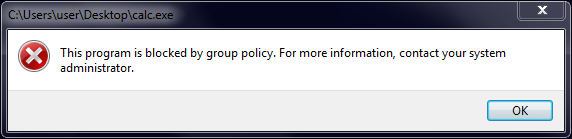
Step 8: confirm that your SRP is working Copy an actual .EXE file from your Windows directory to your desktop screen and try to run it from there. It should result in an error message saying it's blocked.
I need to run a specific file from various locations Then you want a Hash Rule. It uniquely identifies the file by its file hash, like a fingerprint, and will let you run that file regardless of its location. For example, if you have a portable app that you keep on several different USB drives, a Hash Rule will let it run from any location. I want to apply different Local Group Policy settings to different local users or local groups I found an excellent tutorial at SevenForums for this, check it out here. If you enable SRP on the user or group, then this will double up your SRP processing load, so use with discretion. Got any other security suggestions? If you're taking this level of interest in security, you'd probably like to enforce a Windows option described here: A new CWDIllegalInDllSearch registry entry is available to control the DLL search path algorithm. Before running the FixIt, first install the update from the Update Information section on that page. The FixIt restricts some types of DLL-preloading attacks. But you can enable DLL-preloading protection at maximum strength on a system-wide basis by setting the value FFFFFFFF (that's eight Fs) in the SessionManager Registry key described in the article if you wish (it'll show 0xffffffff once entered). If this causes a problem for a specific program, such as crashing when you launch it, then you can add a Registry key for that program to grant it an exception; the article shows you how. I have further suggestions here, in my baseline security plan: suggested defense-in-depth strategy for stand-alone Windows PCs |